General settings
On the General tab, you can configure the basic form parameters: name, description, publication settings, final page, and additional options.
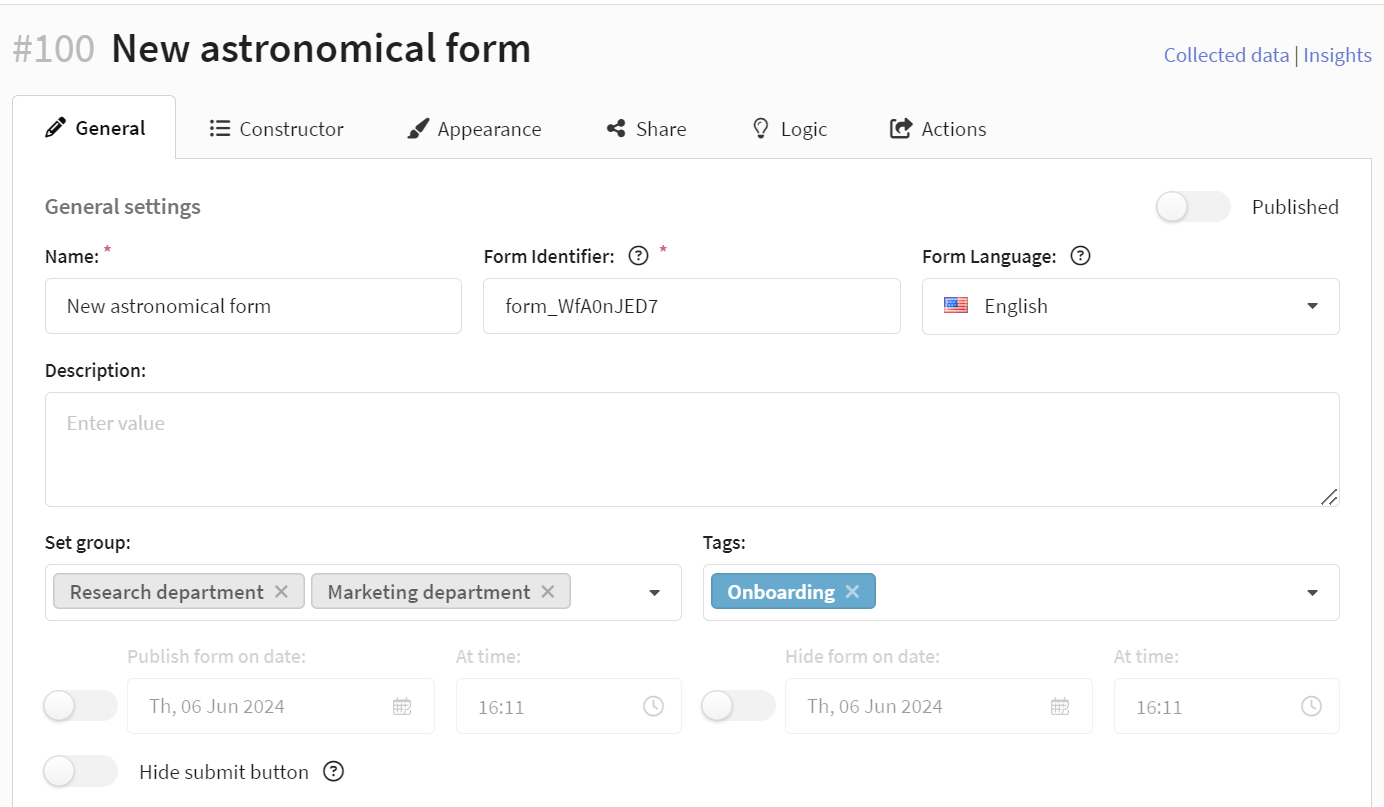
Basic form settings
- Name — form name for identification in the system
- Description — additional information about the form
- Identifier — unique form ID
- Language — form interface language
- Access group — access rights restrictions for the form
- Tags — labels for convenient form organization
Form publication
To make the form available via URL or as an iframe element, activate the Published switch in the upper right corner.
While the form is published, it cannot be deleted.
Publication scheduling
Set the start and end date and time for publishing the form for temporary access:

The form will be available for filling out on the specified date and time and will be automatically unpublished after the period ends. The Published switch should remain inactive — the system will update its status automatically.
The system uses a cache to store forms. Changes in form publication may take up to 3 minutes to take effect.
When the form is not published, users trying to access it will see the message Form is unavailable.
Final page
The final page is a system placeholder page that the user sees after submitting the form. Configure its content:
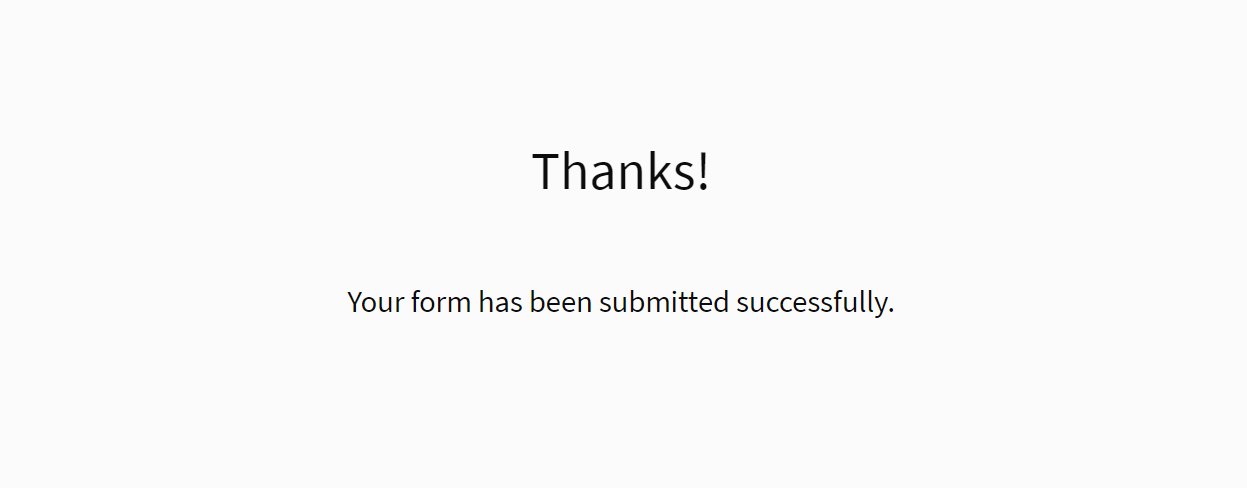
Change the Title and Message on the final page. The message field supports HTML markup:
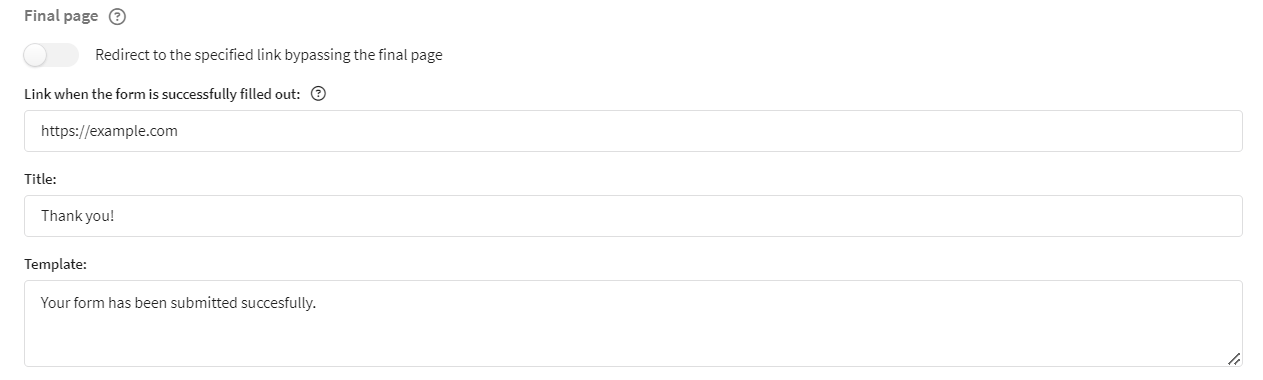
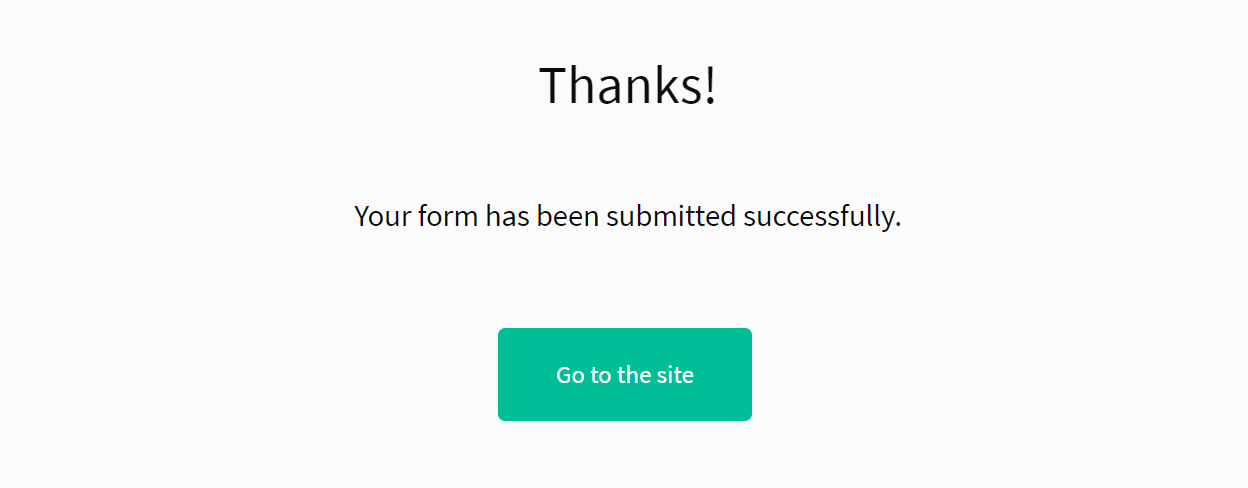
The link when the form is successfully filled out is displayed on the final page as a Go to the site button. The button text can be changed in the Appearance tab:
Activate the Redirect to the specified link bypassing the final message switch to redirect the user immediately after form submission, without showing the final message.
Refill restriction
Protect the form from multiple submissions:
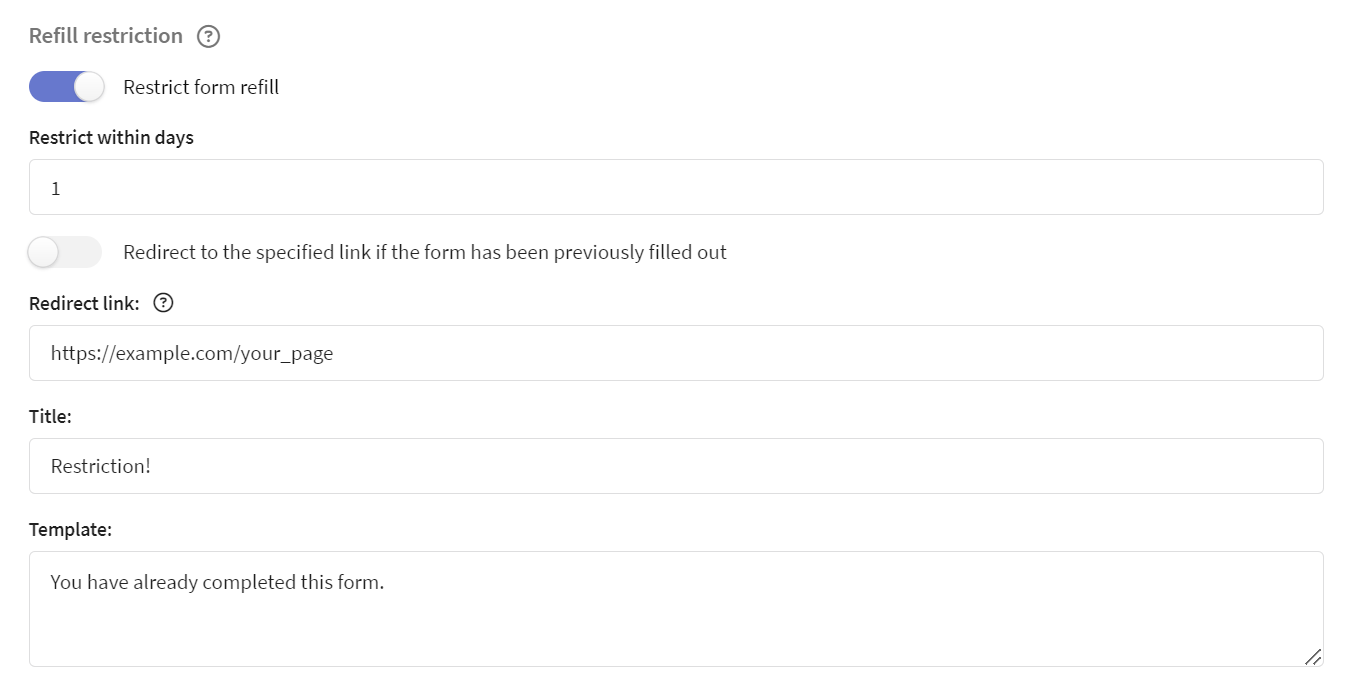
Activate the Restrict form refilling switch and specify the number of days during which refilling is prohibited (from 1 to 366 days).
If the user tries to open the form again within the specified period, they will see the You have already completed this form, refilling is impossible placeholder page. By default, the page shows its title and message, which you can change in the Title and Message fields.
Additional options:
- Specify a redirect link for a refilling attempt
- Activate the Redirect to the specified link if the form has been previously filled out switch — the user will be automatically redirected to the specified link without seeing the refilling message. When the redirect is active, the Title and Message fields are not displayed.
The system determines whether the form has been filled in based on cookie data. If the user uses a different browser or device, or deletes the cookies, the refill restriction will not be applied.
Form customization
Add custom code for advanced customization:
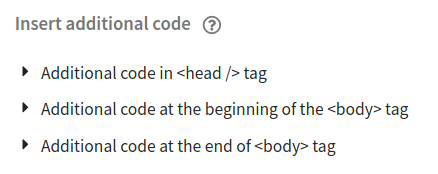
- In the
<head>tag — for connecting styles and scripts - After the opening
<body>tag — for additional elements - Before the closing
</body>tag — for analytics scripts
Additional options
Hide submit button — activate this option to prevent showing the "Submit" and "Next" buttons to the user until they have filled in all required fields on the page:

In the On-premises version of the platform, administrators can customize the appearance and behavior of forms (error page, inactive form page, etc.) by modifying template files. More details in admin documentation.