Best Send Time (BST)
Best Send Time (BST) is a mechanism that determines the optimal time to send messages for each profile based on its behavior. It is powered by a machine learning algorithm that identifies the time of highest profile activity based on data collected by the platform.
Sending messages at the right time directly impacts communication performance:
- Open Rate increases as messages arrive when users are most active;
- engagement grows — users interact with content more frequently;
- the risk of messages being marked as spam decreases due to higher open rates;
- customer loyalty improves thanks to more relevant communication;
- resources are optimized through more efficient campaigns.
How Best Send Time is calculated
The BST model uses machine learning algorithms to analyze user behavior. The ML service analyzes profile activity and determines the hour when the probability of message opening is highest. For each profile, one or several preferred sending hours are calculated.
During analysis:
- data from the last 6 months is used;
- message opens and other behavioral events are processed;
- the best hour or several hours for sending are determined.
BST data is regularly recalculated (by default, once a day at 00:00 in the account time zone).
By default, the ML model uses profile activity data from the last 6 months to determine the optimal sending time. If a profile has no history of sends and opens within this period, the system cannot calculate BST for it.
Using Best Send Time
BST-based segmentation allows selecting profiles for which the current or specified time is optimal for sending. Then you can configure a Mailing by selecting the segment audience as recipients — each user will receive the message at the most appropriate time.
To use the ML service, it must be activated at the platform level. If you are using the On-premises version, contact the Altcraft support team.
To calculate the best send time, you need to enable ML for the profile database. Go to the database settings, open Machine Learning Settings, and activate the module.
After activation, the model will start collecting and processing data. You can check the next update time in the database settings. If ML was enabled recently, wait for the first recalculation.
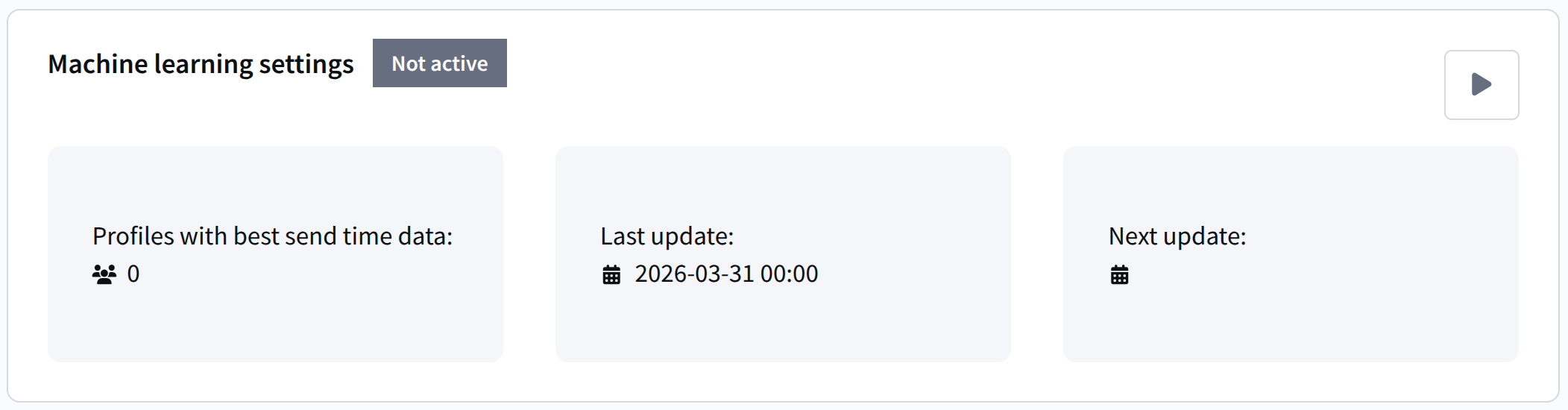
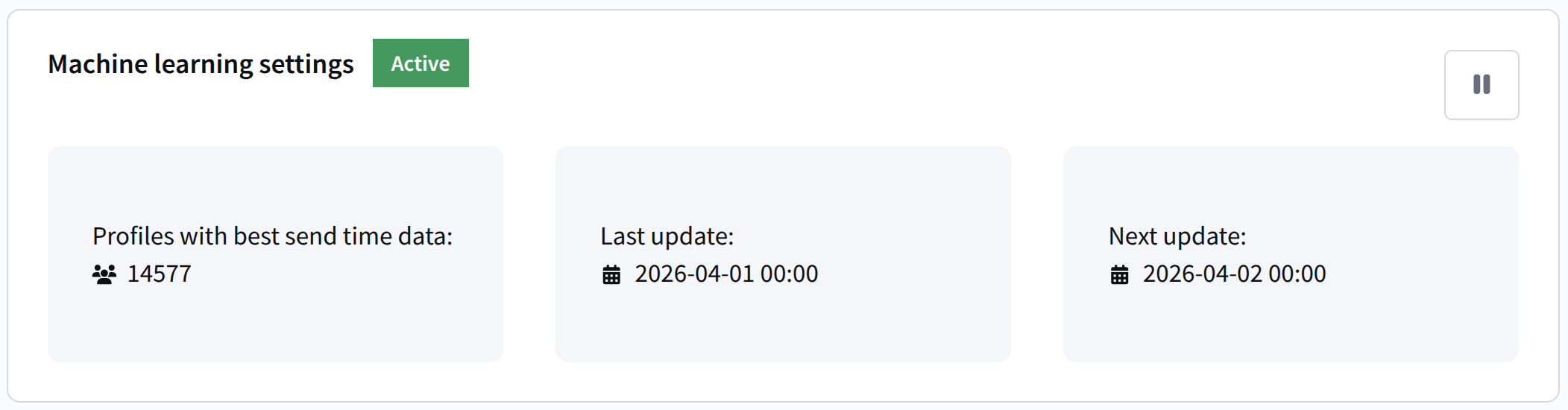
BST can be used as a condition for building a dynamic segment or in an automation Scenario node.
BST Segmentation
To create a BST segment, go to Segments — Dynamic segment and create a new segment. | 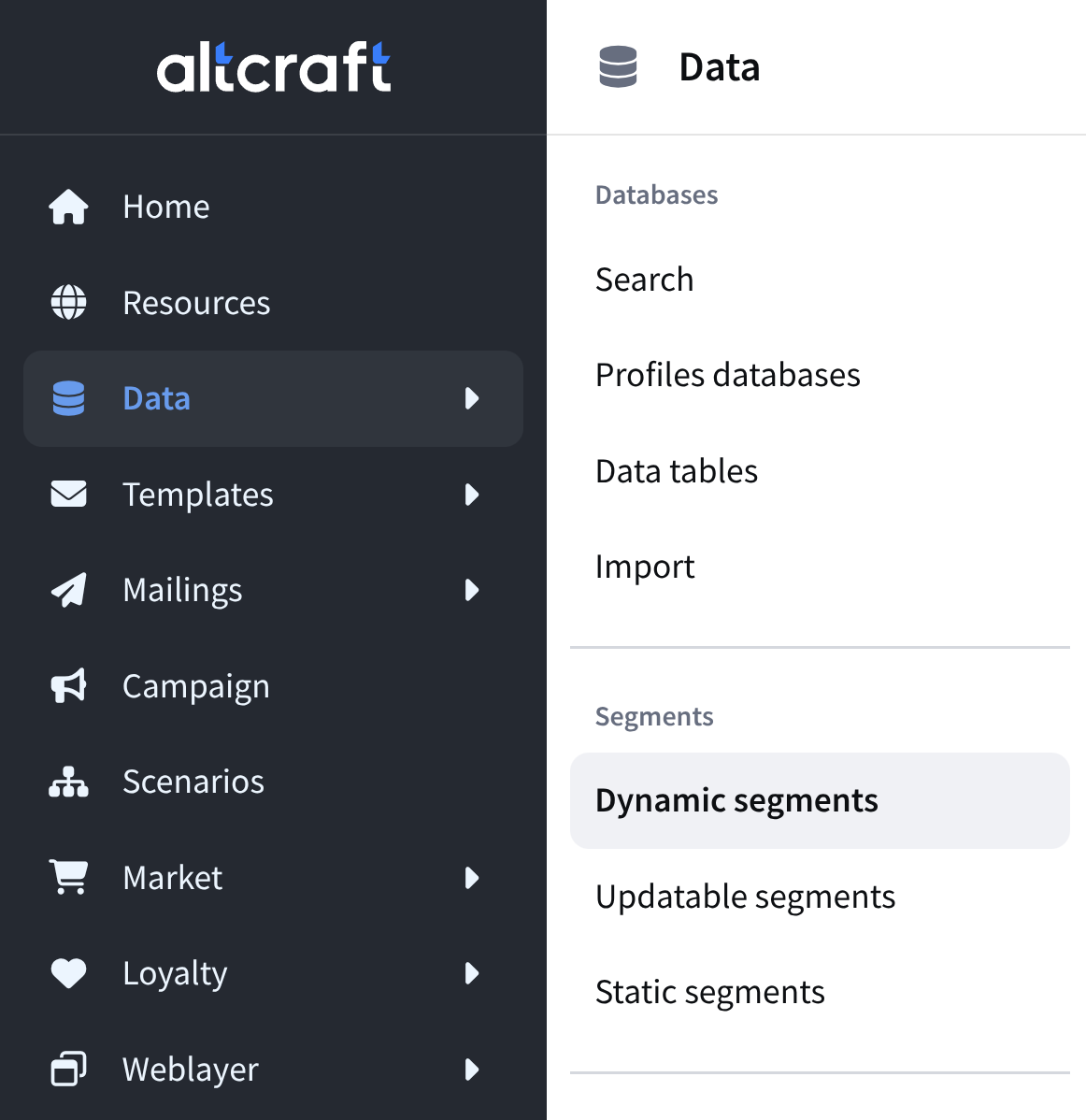 |
Select a profile database with ML enabled. Add the condition Profile data — Best Send Time. | 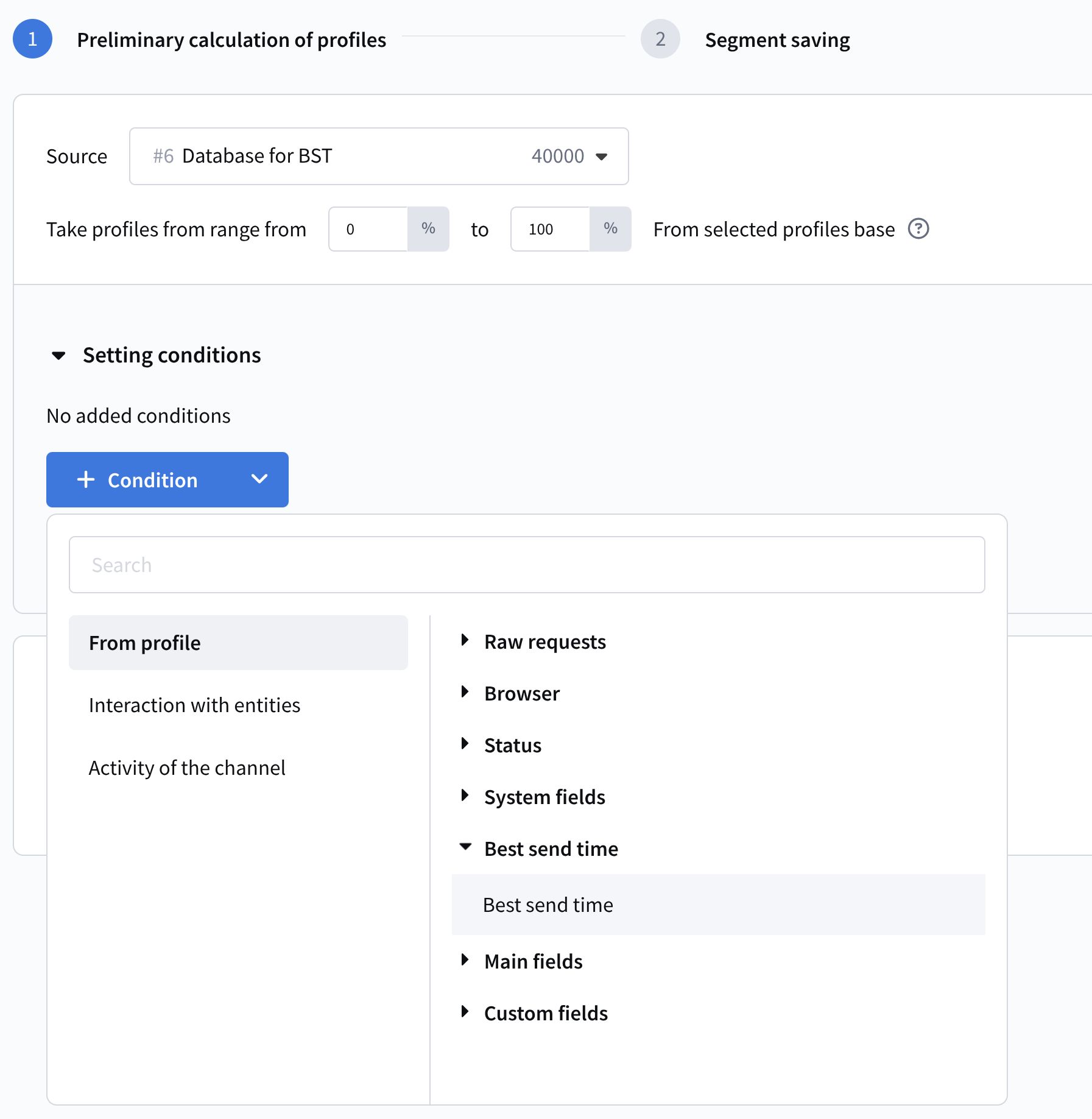 |
Two operators are available:
| 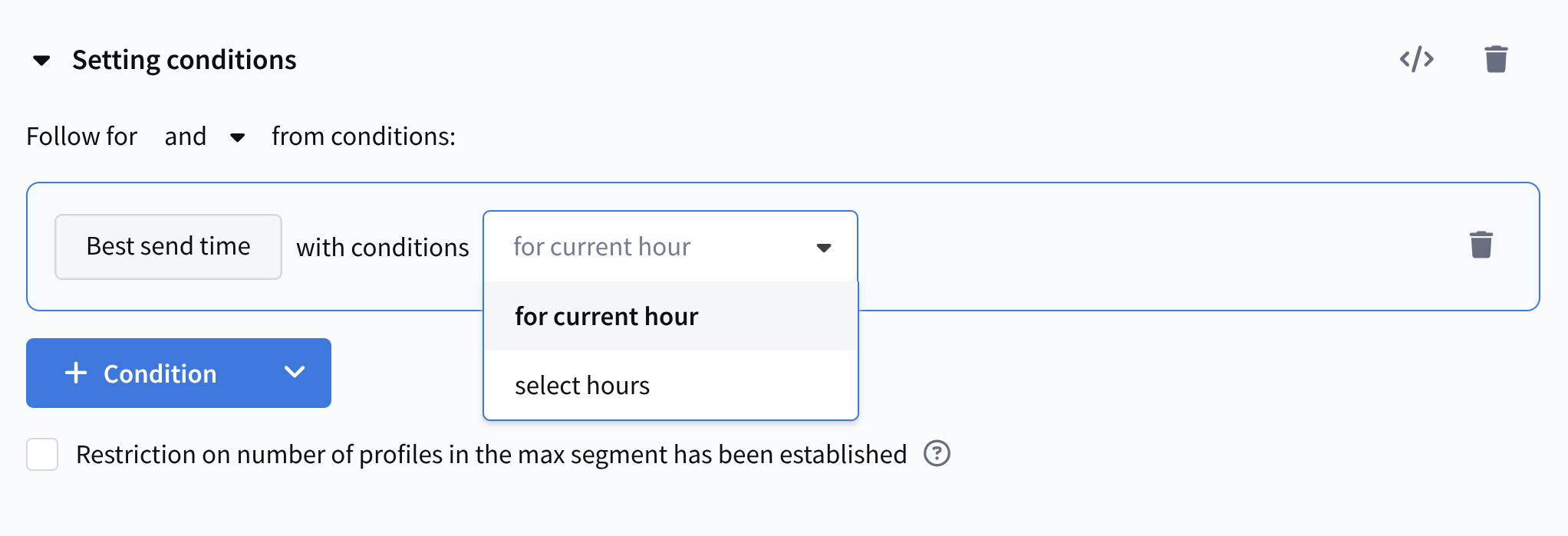 |
After configuration, name and save the segment. You can now use it in Mailings. The simplest use case is launching a regular Campaign. Create a campaign, select the BST segment as recipients, and set the sending time to match the segment condition. For example, you can schedule a daily campaign at 17:00 and create a segment of profiles for which 17:00 is the best send time. | 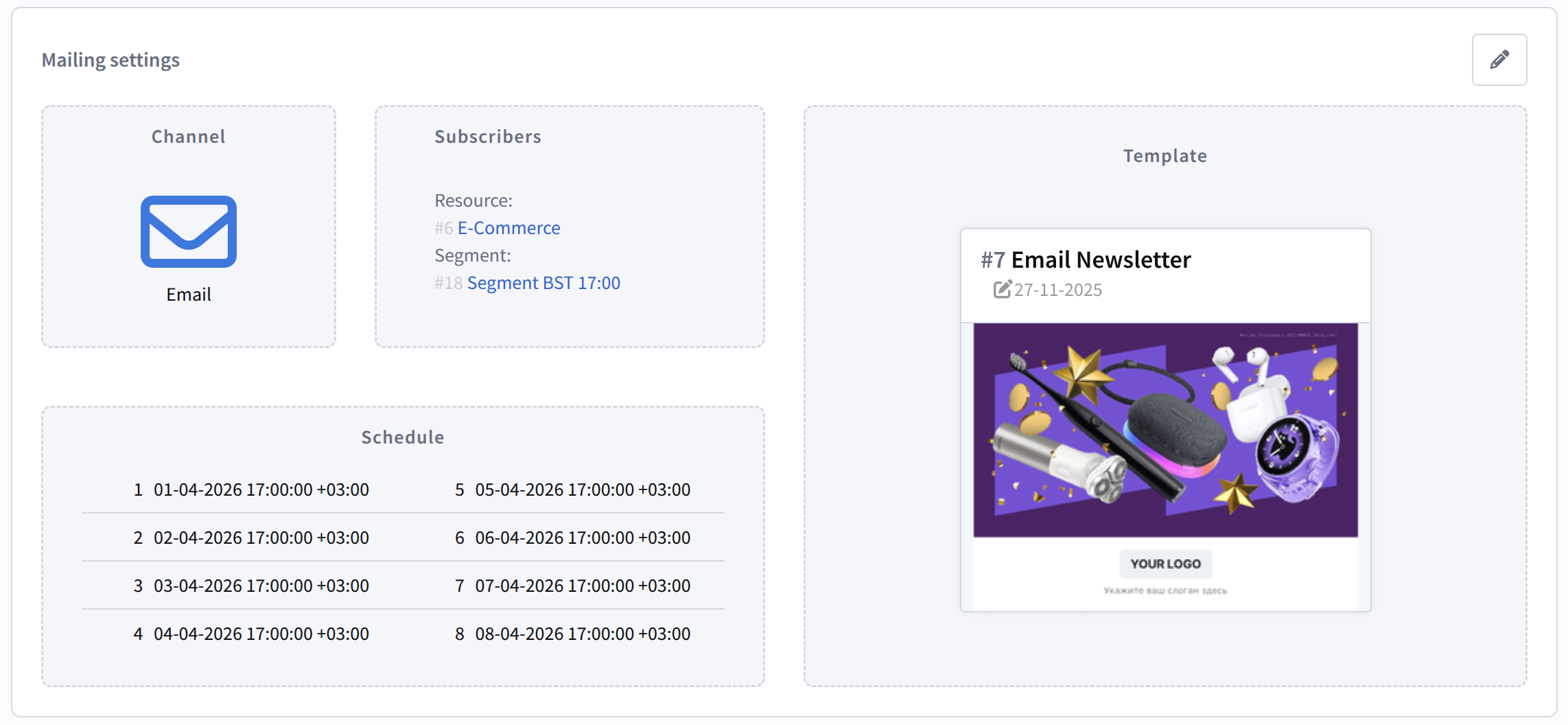 |
Scenario Node
This approach in Scenarios is suitable for complex communications with trigger chains and advanced logic.
Add a node from the Channels category and place the Best Send Time operator before it. Add other nodes if needed. | 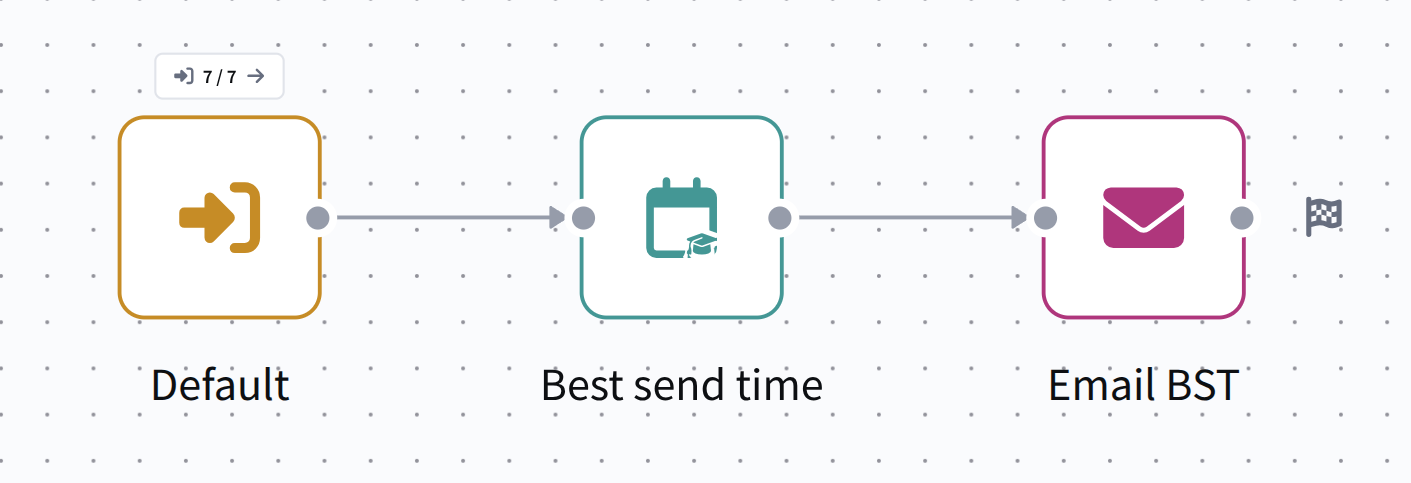 |
Activate and save the scenario. | 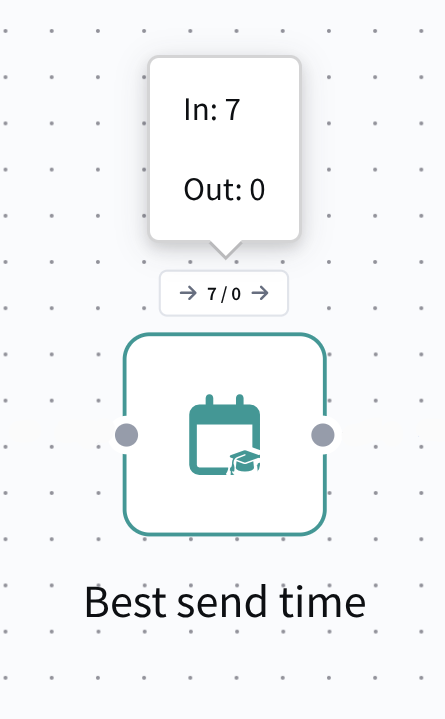 |