In-App storage settings
Description
In-App storage settings configure the S3 storage that stores the content of In-App messages. Storage is required for the In-App channel to work.
Without a configured storage, the In-App channel does not work.
Supported storages
- MinIO / RustFS — full support, including Snowball upload (
OBJECTS3_SNOWBALL_ENABLE=true). - Selectel / Yandex Cloud / VK Cloud / SberCloud — supported with Snowball upload disabled —
OBJECTS3_SNOWBALL_ENABLE=false(the default value). Otherwise, a group of objects is packed into a single archive that the provider's storage does not unpack, and the data becomes unreadable.
Expired In-App content is cleaned up automatically by the platform — this does not depend on the S3 lifecycle. For web versions on this storage, the TTL must be configured by the administrator in the provider's storage — see Web version store policies.
The storage key (OBJECTS3_KEY_ID) requires S3 permissions: the full list — in the configuration file reference.
The S3 storage is connected in the configuration file using the OBJECTS3_* parameters. The bucket and credentials must be available to the platform. Detailed instructions on storage deployment (MinIO) are available here.
Creating storage
To manage storage, in the main menu select Account Area — In-App storage settings:
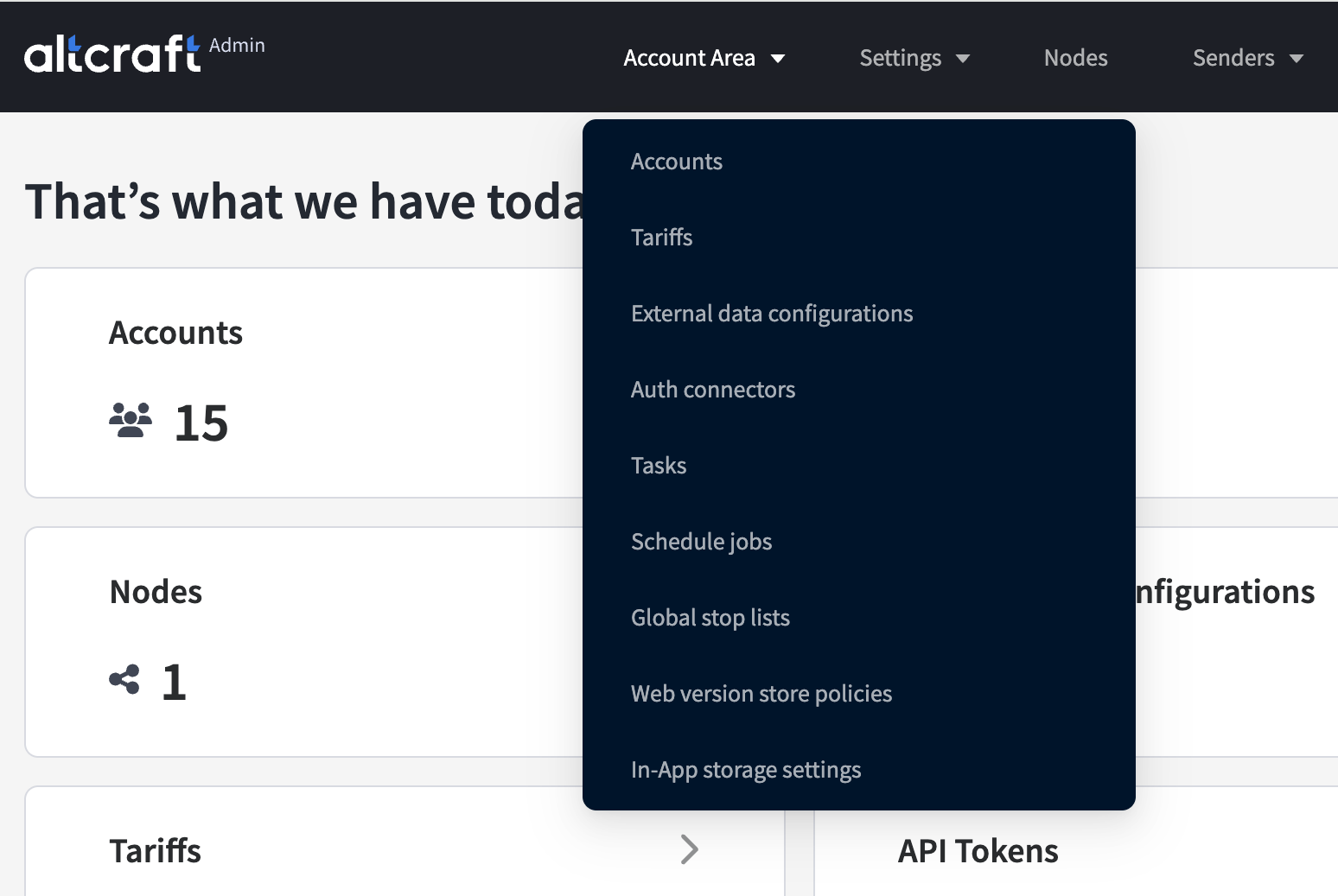
The list displays the created storage configurations. On the right side of the table are the edit and delete buttons. To create storage, click Create:
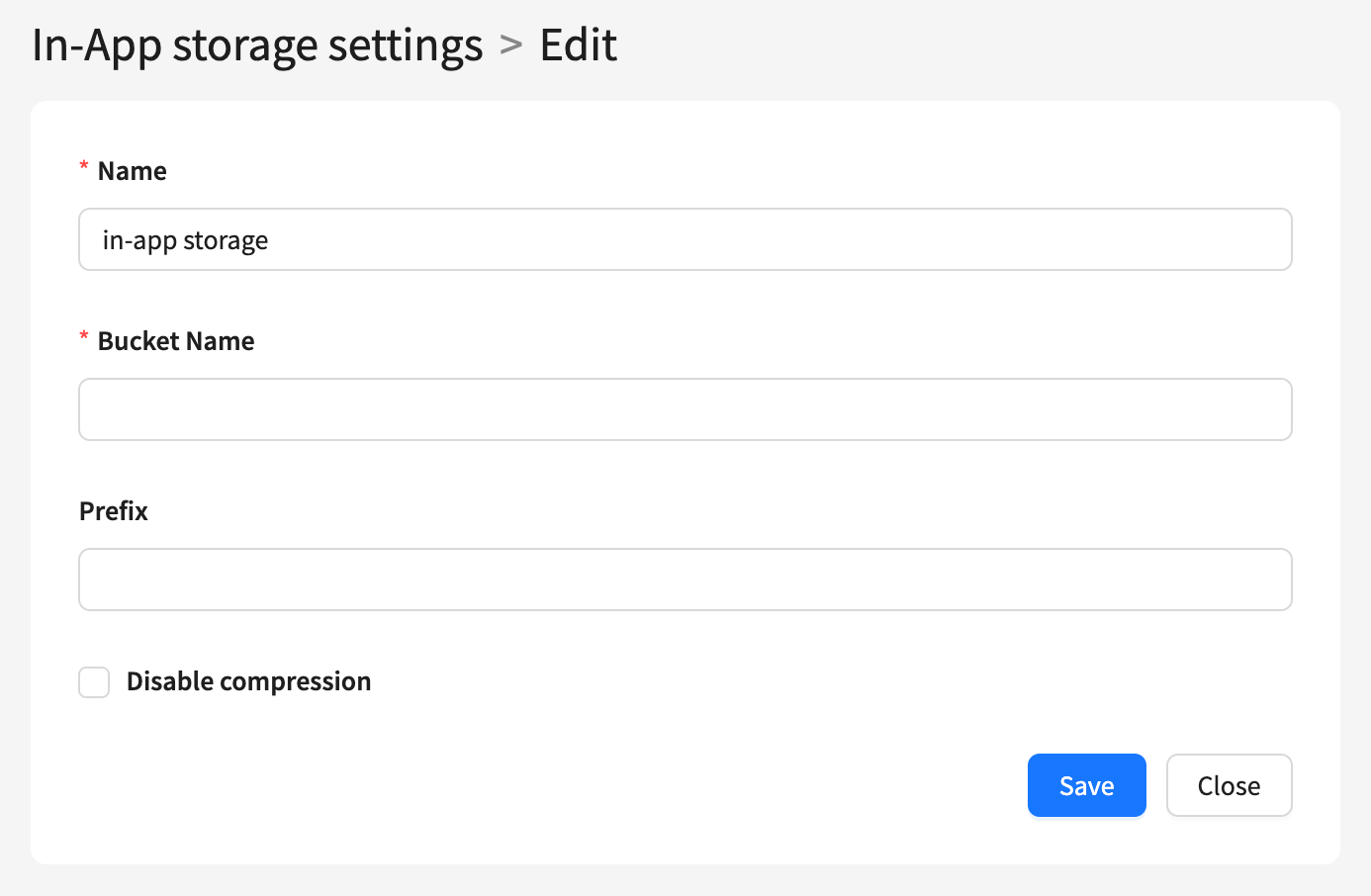
For each storage configuration, set the following parameters:
- Name — the storage name.
- Bucket Name — the name of the bucket (container) in the S3 storage where the objects will be stored.
- Prefix (optional) — a string at the beginning of the object key name, used to organize data inside the bucket.
- Disable compression — disables data compression during storage.
After saving, select the storage in the account settings.
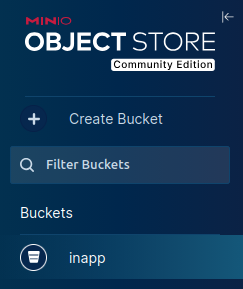
You can find Bucket Name in your storage UI: